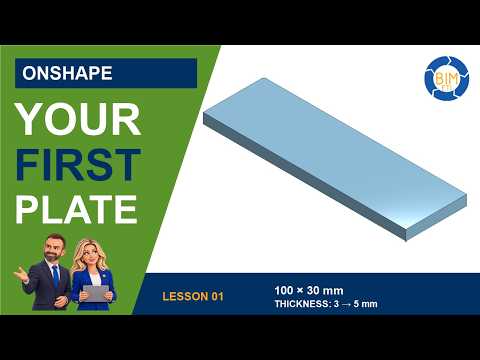
SketchUp Lesson 1: Build a Precise Plate
Learning outcome
Create a precise 100 × 30 × 5 mm blank plate in SketchUp for Web. Make it a Solid Group, verify all three dimensions, then save and reopen the model.
Before you start
Beginner lesson · 2:57 · English. Work in a new practice model with millimetre units. This lesson uses genuine SketchUp screen recordings with AI-assisted English narration and illustrated presenters. The plate has no hole or lettering.
Step-by-step guide
Set millimetre units and prepare a clean practice model (00:24).
Draw a 100 × 30 mm rectangle (00:47).
Use Push/Pull to give the plate 5 mm thickness (01:15).
Select the connected plate geometry and make a group. Check that Entity Info identifies a Solid Group (01:36).
Measure the actual edges and confirm 100 mm length, 30 mm width and 5 mm thickness (01:58).
Save the model in a Trimble Connect project and reopen it to check that your work was retained (02:29).
Try it yourself
Build the same plate in a separate practice model. Use exact dimensions rather than estimating by eye. Keep the plate as one group before adding any new feature.
Check your result
The final dimensions are 100 × 30 × 5 mm. Entity Info reports a Solid Group. The saved model reopens with the same geometry and dimensions.
Common mistakes
If the plate is the wrong size, check the model units and measure the actual edges. If Entity Info does not report a Solid Group, check that all faces form a closed volume and that stray geometry is not included in the group.
Continue learning
Lesson 2: Coming soon.
Lesson 3: Coming soon.
Download the worksheet
SketchUp Lesson 1 — practice worksheet (PDF, English, 2 pages)
Includes exercise dimensions, step-by-step practice, checks and troubleshooting.
Official help
Official SketchUp guidance for drawing, Push/Pull and saving your model:
SketchUp: Drawing basic shapes
SketchUp: Pushing and pulling shapes into 3D
SketchUp for Web: Saving models